QR Code Generator for vCard
Free vCard QR Code Generator
Share your contact details instantly with a single scan and grow your network exponentially

What is a vCard QR code?
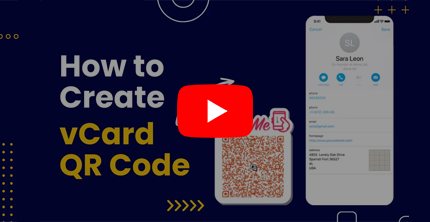
A vCard QR Code works as a virtual contact card, and it allows you to share your contact details seamlessly on mobile devices. The QR code includes your contact information, like name, phone number, email address, etc. Users can scan the vCard QR code to get your information and save your contact. You may also see a vCard QR code called a contact card QR code, a contact QR code, or a QR code for contact info. They all mean the same thing: a single code people scan to get your contact details and save them, with no typing. Because everything is stored in one scannable code, a contact card QR code is one of the fastest ways to share who you are and how to reach you.
What contact details can you share with a vCard QR code?
A vCard QR code helps users save your contact details quickly and accurately. Instead of typing your phone number or email address, they can scan the QR code and add your details to their contact list.
This makes a vCard QR code useful when you want to create a QR code for contact details, a contact card QR code, or a save contact QR code for business cards, resumes, brochures, email signatures, and professional profiles.
You can add the following details to a vCard QR code:
How does a vCard QR code work?
A vCard QR code lets people scan, view, and save your contact details to their phone without manually typing your phone number, email address, or website.


Note: On most phones, the contact details open in a saveable format. Android users may see a VCF file, while iPhone users may see the contact details in the Contacts app.
Should you use a static or dynamic vCard QR code?
A vCard QR code can be static or dynamic. The right choice depends on whether your contact details will change and whether you need scan analytics.
Choose a static vCard QR code if your details will not change
A static vCard QR code stores your contact details directly inside the QR code. It can work without internet, so people can scan it and save your contact even when they are offline.
Use it when your phone number, email, company, and address are unlikely to change. If any detail changes later, you will need to create and print a new QR code.
Choose a dynamic vCard QR code if you want to update details or track scans
A dynamic vCard QR code lets you update your contact details later without reprinting the QR code. It also gives you scan analytics, so you can see how your QR code is performing.
Use it when your role, phone number, email, company, website, or address may change, or when you want to track scans.
Quick recommendation: Use a static vCard QR code for fixed contact details and offline access. Use a dynamic vCard QR code if you want editing flexibility or scan analytics.
Where to put your contact card QR code
A vCard QR code works anywhere you want people to save your contact quickly. Place yours where people decide to connect with you.
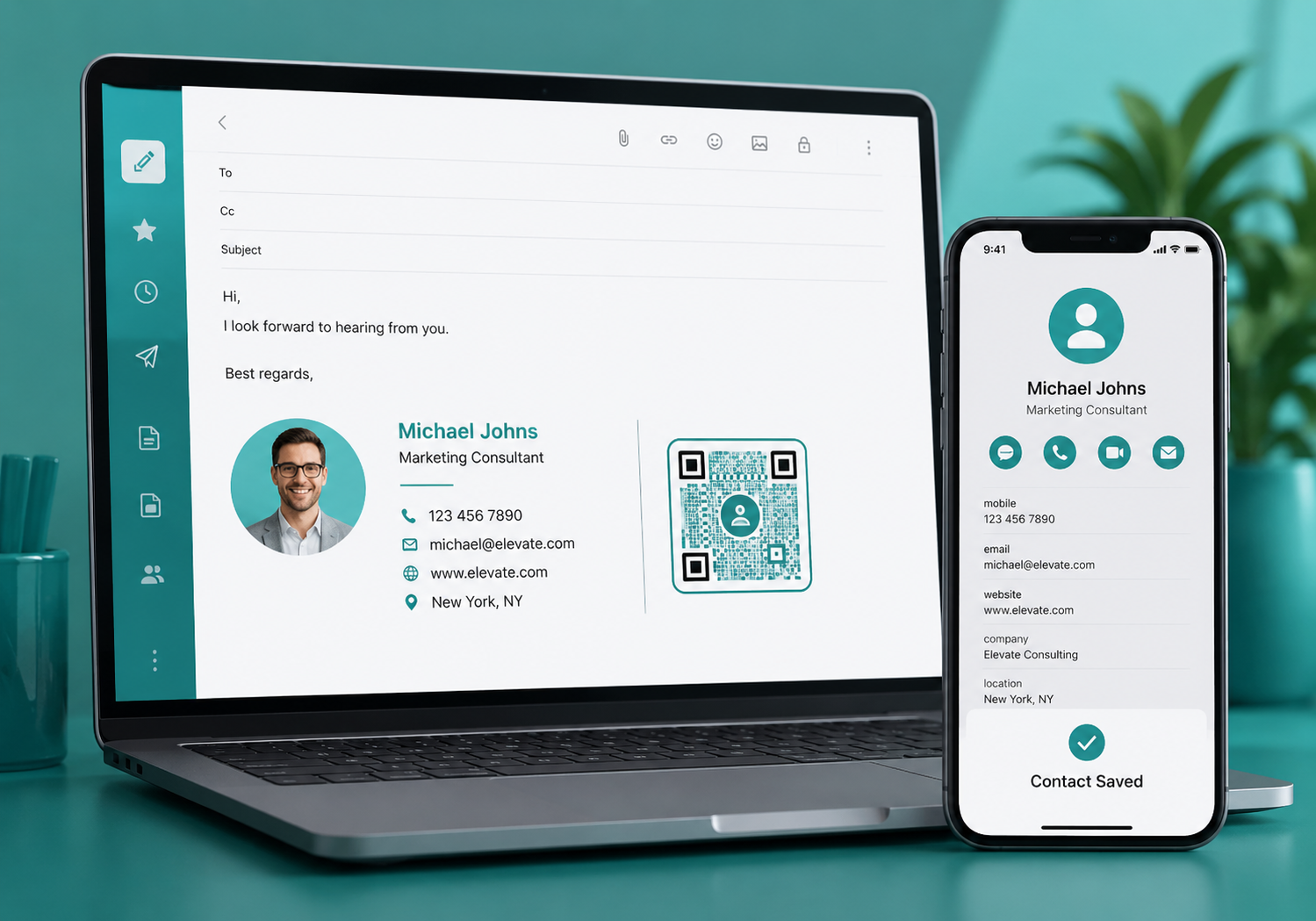
Email signatures
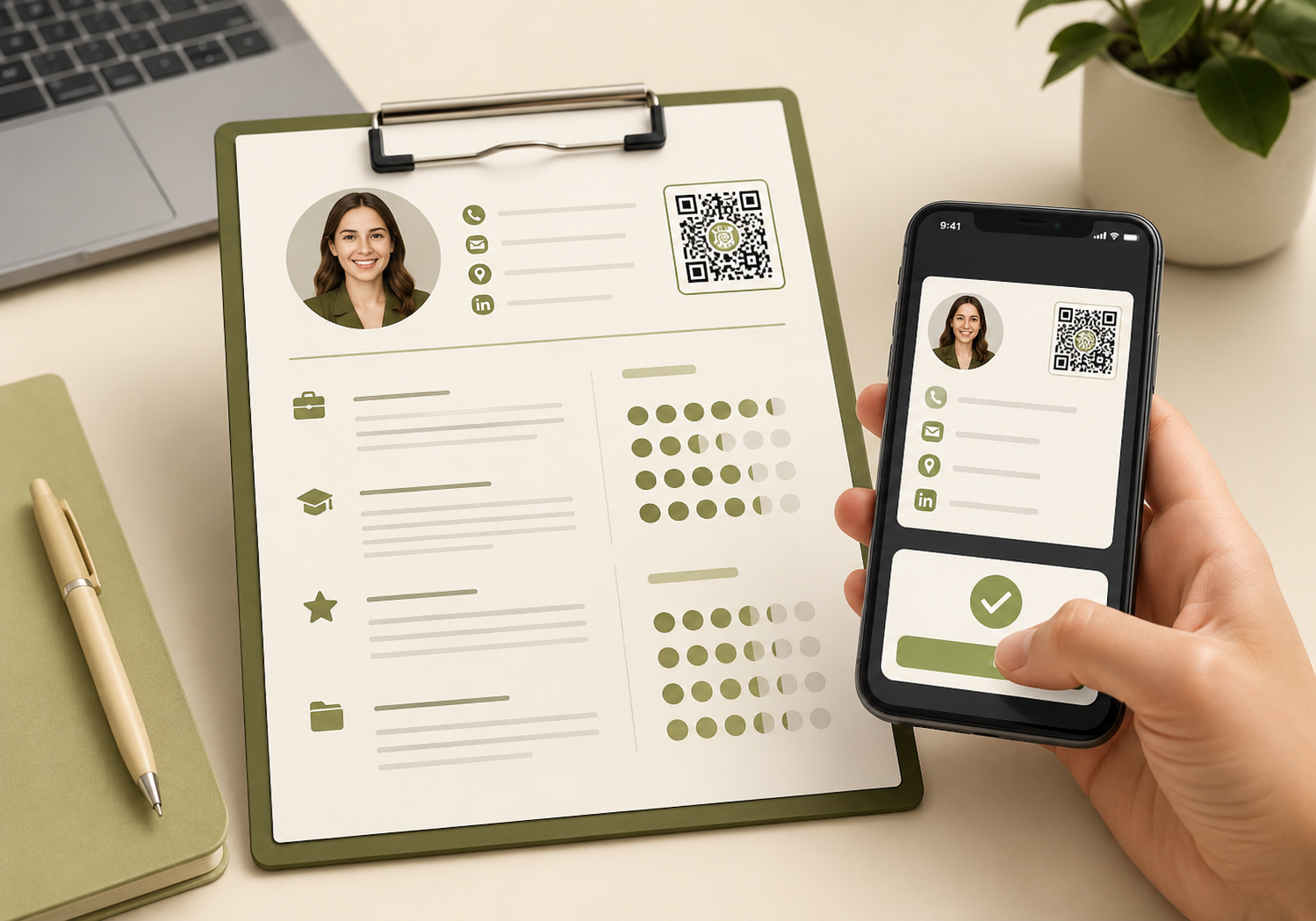
Resumes and portfolios
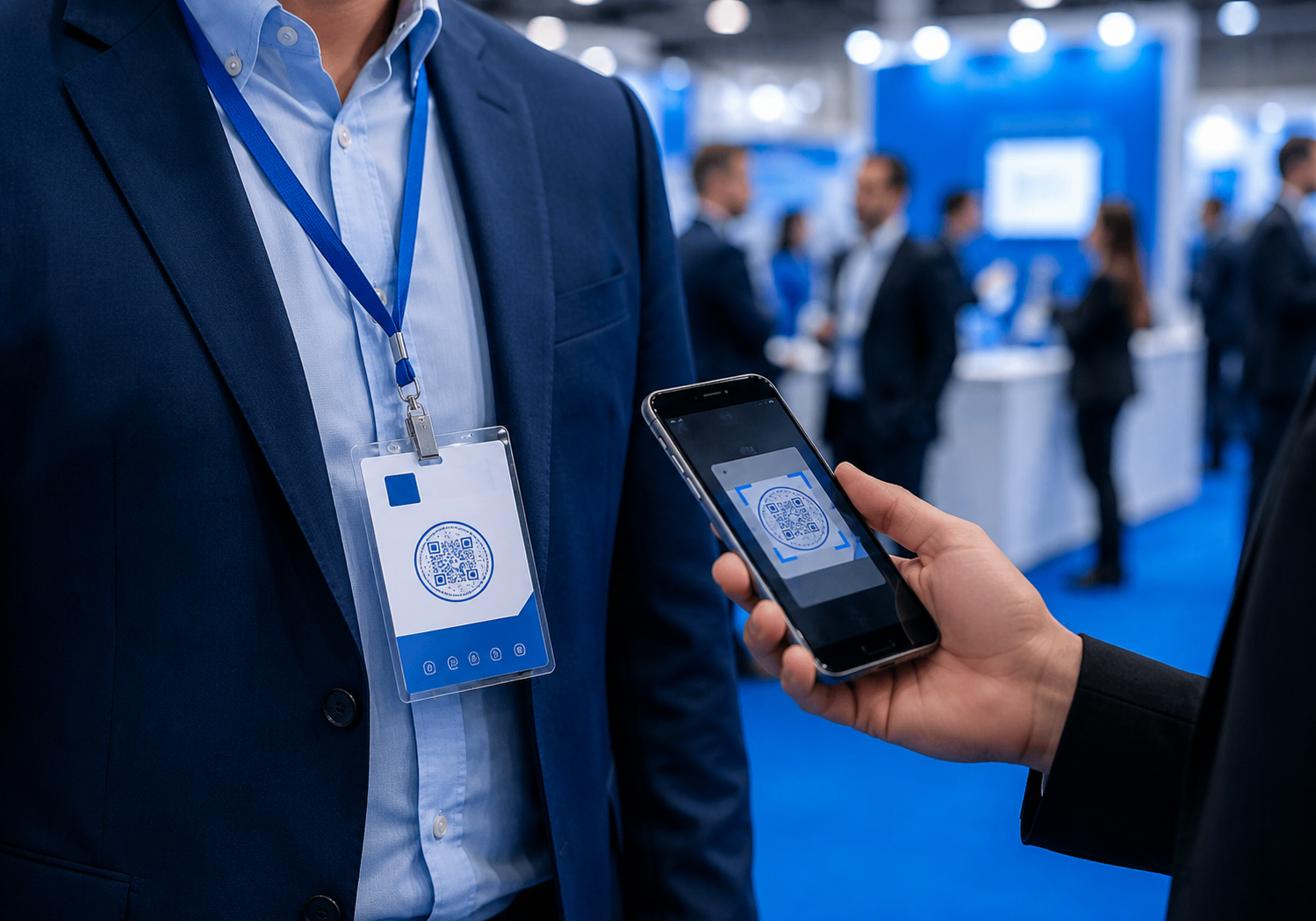
Trade shows and name badges
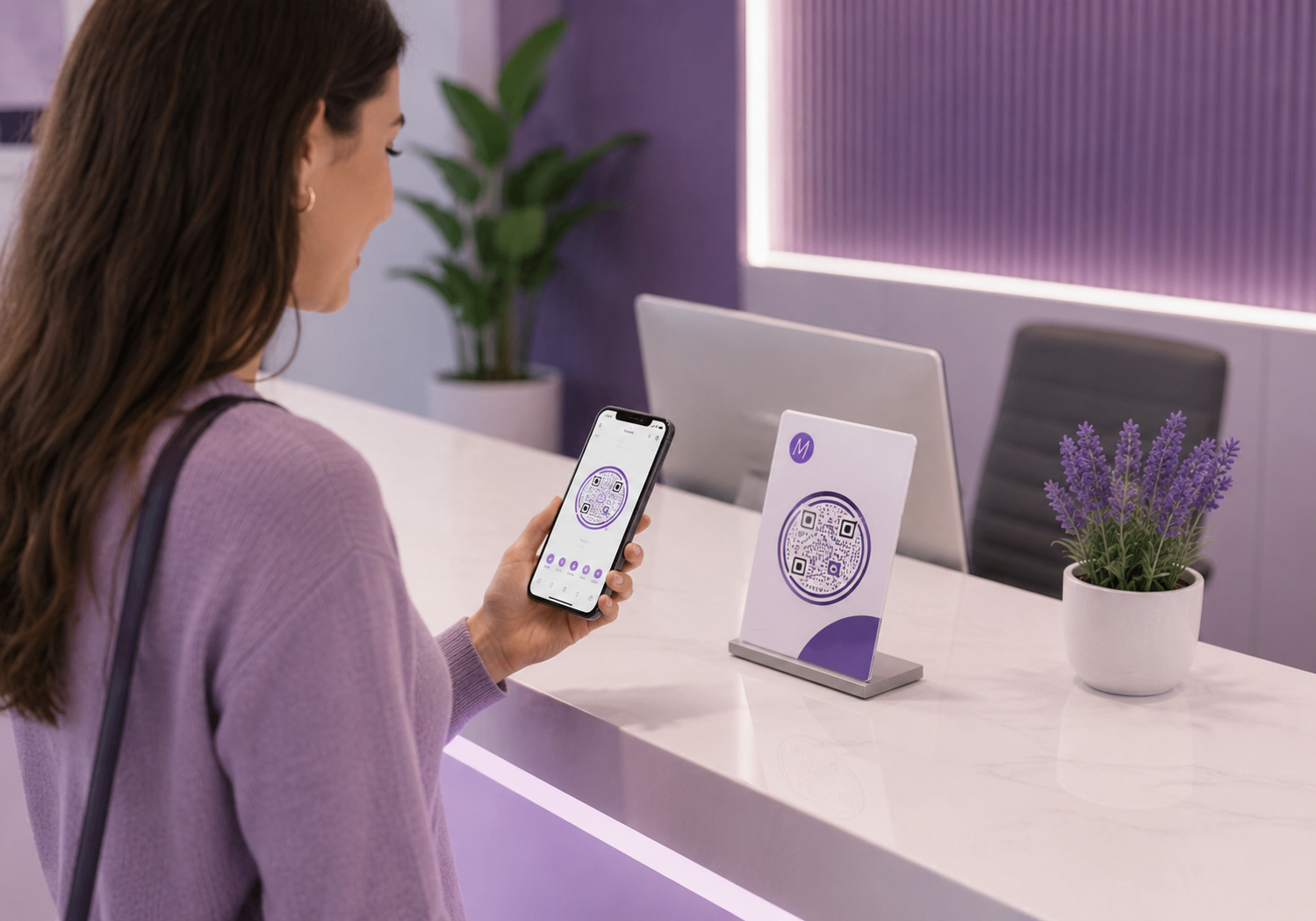
Storefronts and office desks
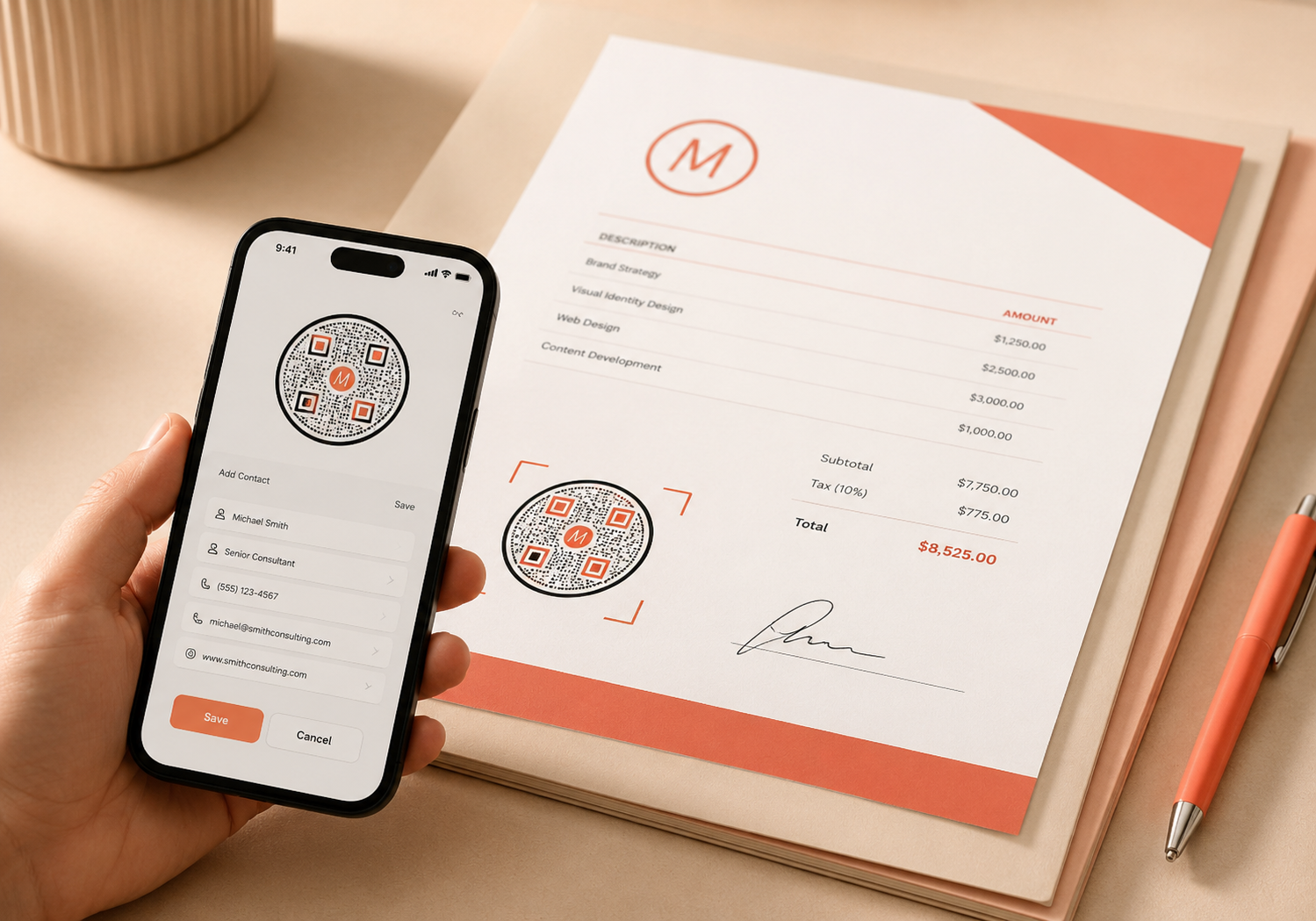
Invoices and proposals
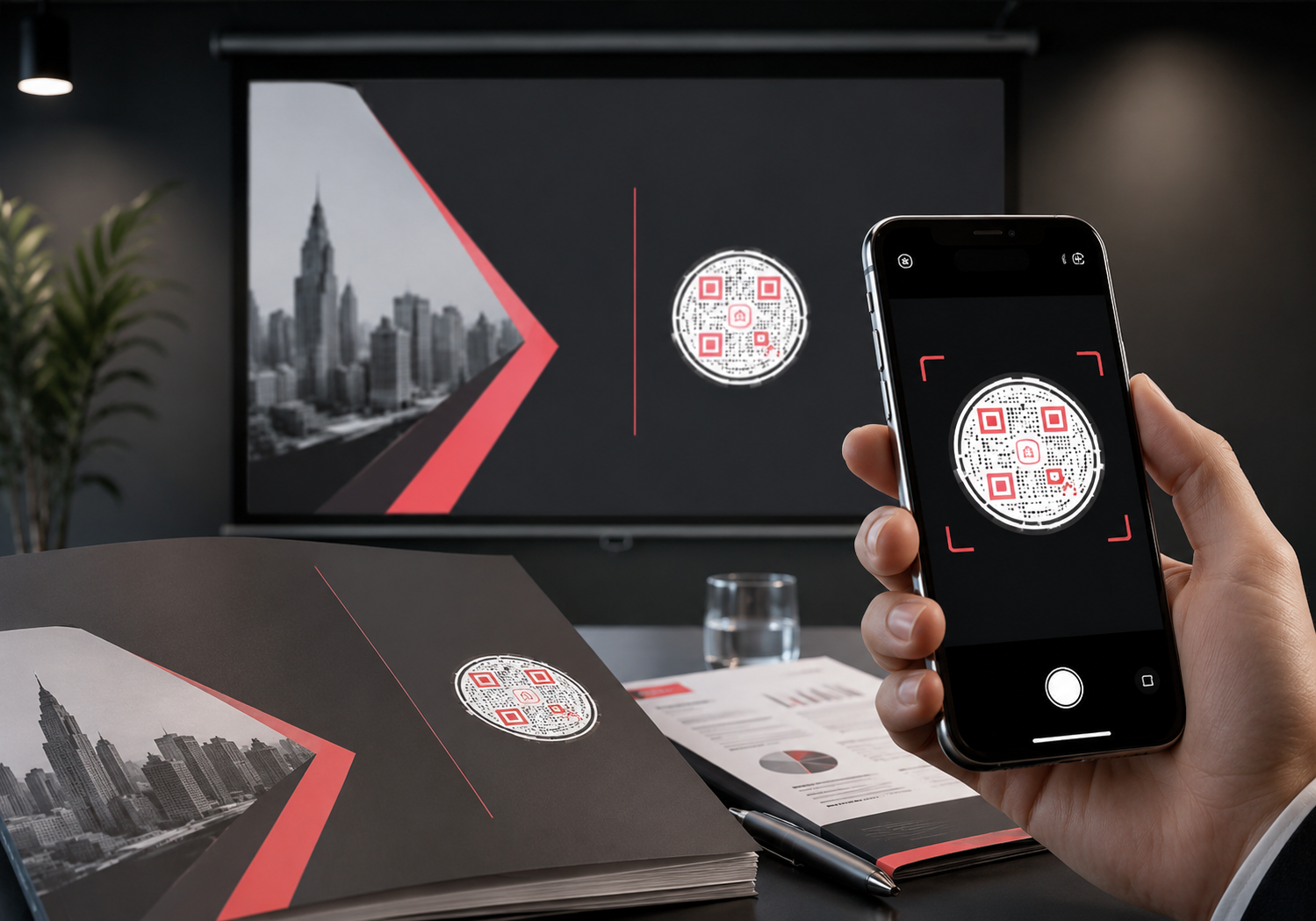
Presentation slides and documents
Who should use a vCard QR code?
A vCard QR code is suitable for all professionals who want to grow their network and attract potential customers, clients, investors, and employers. You should use a vCard QR code if you are:


Benefits of a vCard QR code
A business card is one of the most important tools for expanding your network and increasing your connections. However, a business card has printed information, and users need to save the contact manually. It's time-consuming, and hence, many people throw away business cards. A vCard helps you get rid of this problem.Let's look at the benefits of a QR Code vCard.
1️⃣
Share your contact details instantly with a single scan.
2️⃣
Expand your network and grow your connections.
3️⃣
Add curiosity and professionalism to your business cards.
4️⃣
Update your information in real-time with dynamic vCard QR codes.

5️⃣
Let people scan to save your contact straight to their phone, with no typing.
6️⃣
Create your contact card QR code free and download it in seconds.
7️⃣
Reduce manual typing errors when people save your contact details.
8️⃣
Use the same contact QR code on print and digital materials.
Best practices for using a vCard QR code
Follow these tips to get more scans on your vCard QR code.
Make your QR code attractive
Use shapes, colors, and premade designs to make your QR code look unique and attractive. All QR codes look pretty much the same. By using shapes and colors, you can add an element of curiosity to your QR code, resulting in more scans.


Add a logo or picture
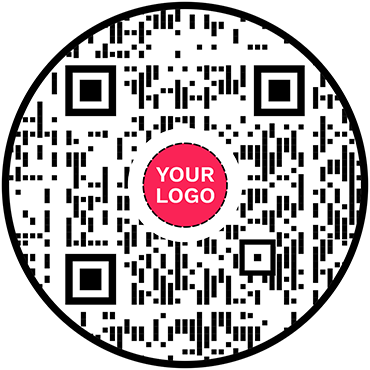
If you represent a company or brand, add a logo to your QR code to make it brandable. If you’re a solo professional, you can have your photo as your logo to make the QR code recognizable and build trust.
Include stickers with CTAs
Including a custom sticker with a call to action (CTA) on your QR code can boost its scan rate significantly. Be sure to use stickers with CTAs to inspire action and get more scans on your QR code vCard.


Use a dynamic vCard QR code
Make a dynamic vCard QR code, so you can use the same business card even if your contact details change in the future. If you create a static QR code, you'll need to print a new QR code every time you update your information.
Create and manage vCard QR codes with QRCodeChimp
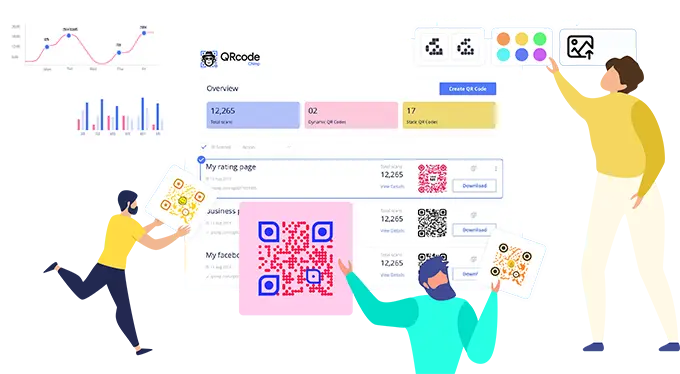
QRCodeChimp's QR code generator for vCard lets you create a virtual contact card quickly and effortlessly. Enter your contact details, decorate your QR code, download your vCard, and you're all set to share your contact with the world. QRCodeChimp offers several QR code design, marketing, and management features, including:


Need more than a basic vCard QR code?
- Personal information
- Contact details
- Website links
- Social media links
- Contact collection form
- Images
People can scan the code to reach your profile page, where they can get all your information and save your contact with a single click. Try Digital Business Card to get access to extensive customization, advanced analytics, and other amazing features. Visit the Digital Business Cards page to get started.

- How to create a vCard QR code?
- What information can I link to a vCard QR code?
- Where can I put a vCard QR code?
- What if my contact details change after making a vCard QR code?
- What is a contact card QR code?
- How does a QR code save a contact to a phone?
- Can I turn a VCF file into a QR code?
- Does a static vCard QR code work without internet?
- What is the difference between a vCard QR code and a Digital Business Card?
- Should I use a vCard QR code or a Digital Business Card?
How to create a vCard QR code?
QRCodeChimp lets you create a vCard QR Code in a few easy steps. Follow these steps to make your virtual contact card.
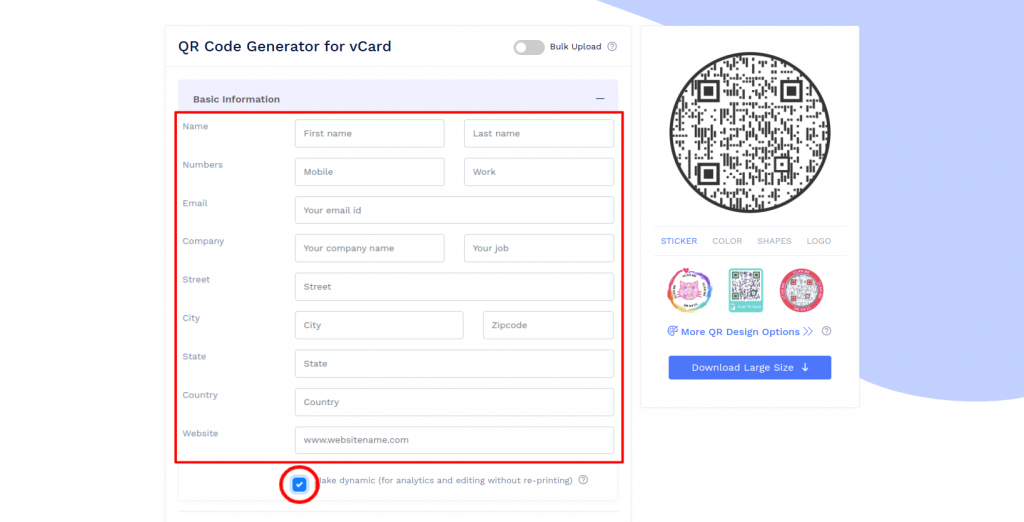
Step 1: Enter Your Basic Information
Enter the basic information details.
Note: Check the 'make dynamic' box to track the scans and edit without reprinting (optional).
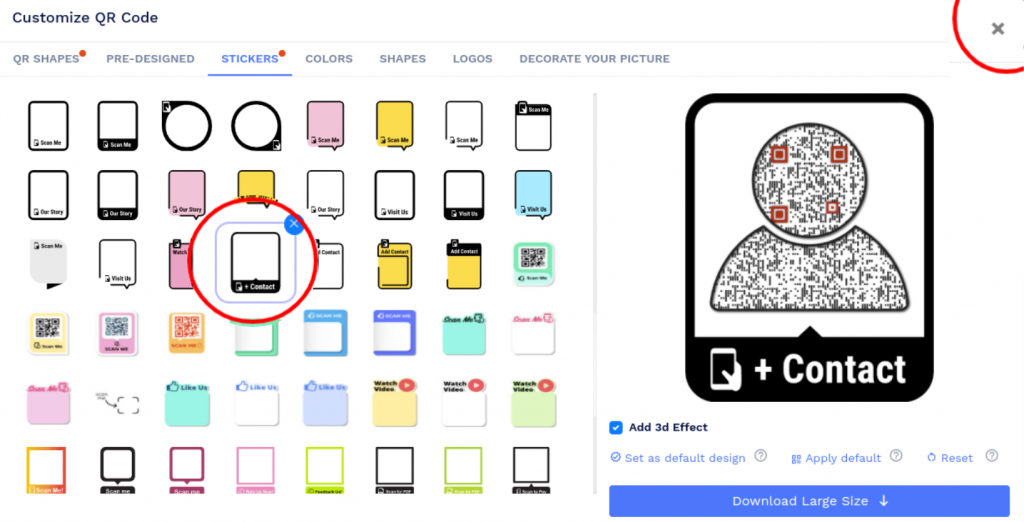
Step 2: Design Your QR Code
Click on 'Design Color and Decorate QR Code' to customize your QR Code design (ex: adding color, shape, sticker).
Note: Click on the 'x' icon of the 'Customize QR Code' popup to save changes.
Step 3: Save and Download
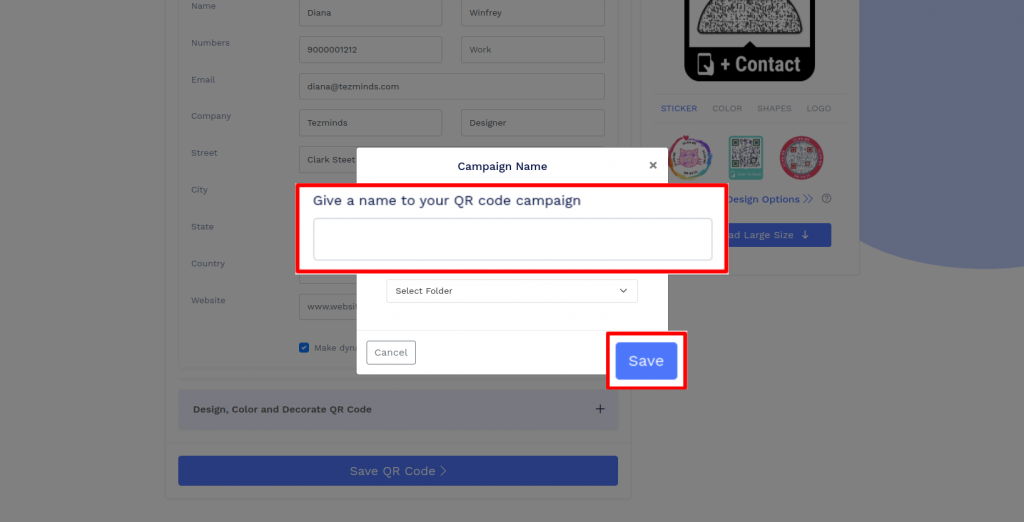
Save the QR Code by clicking on the 'Save QR Code' button, entering the QR name, and then clicking on 'Save.'
Note: Make sure to scan your QR Code from different devices (iOS and Android) before printing for production.
What information can I link to a vCard QR code?
A vCard acts as your virtual contact card, and you can include all information on it that appears on a physical business card. This includes your name, address, and contact details. If you're looking for a fast and scalable way to grow your network, a vCard QR code is a perfect solution for you.
Where can I put a vCard QR code?
The most common use for a vCard QR code is on a business card. It adds digital capabilities to your business cards, as people can scan the code to save your contact. Apart from a business card, you can put a vCard QR code on your resume, portfolio, email signature, and website/landing pages.
What if my contact details change after making a vCard QR code?
If you create a static vCard QR code, the contact details are stored directly in the QR code and can work without internet. However, you cannot edit those details later. If your phone number, email, company, or address changes, you need to create and print a new QR code.
If your contact details may change, use a dynamic vCard QR code. It lets you update your information without reprinting the QR code and also gives you scan analytics.
What is a contact card QR code?
A contact card QR code is the same thing as a vCard QR code. It’s a QR code that holds your contact details so people can scan it and save you to their phone. Some people search for “contact card QR code” or “contact QR code,” and others search for “vCard QR code.” They all describe the same scan-to-save contact code.
How does a QR code save a contact to a phone?
When someone scans the code, their phone reads the contact details stored inside it and offers to save them. On many Android devices, a VCF file downloads and tapping it adds the contact. On iPhone, the contact card opens directly. Either way, the contact saves quickly with no manual typing.
Can I turn a VCF file into a QR code?
Yes. A vCard QR code stores the same contact information as a VCF file, so scanning the code adds the contact to a phone just like opening a VCF would. Enter your details in the generator above and download your QR code. No separate VCF file is needed.
Does a static vCard QR code work without internet?
Yes. A static vCard QR code can work without internet because the contact details are stored directly inside the QR code. Users can scan it and save the contact offline. However, static vCard QR codes cannot be edited or tracked after creation.
What is the difference between a vCard QR code and a Digital Business Card?
A vCard QR code shares your contact details so people can scan and save you to their phone. A Digital Business Card is a richer product: it gives you a custom profile page with your photo, social links, images, profile summary, lead capture options, and more business information behind one code.
Use a vCard QR code when you just need fast contact sharing. If you want a full profile page, create a Digital Business Card instead.
Should I use a vCard QR code or a Digital Business Card?
Use a vCard QR code if your main goal is to help people save your contact details. Use a Digital Business Card if you want a richer profile that helps prospects, customers, or event connections learn more about you before they contact you.
Hear what our customers have to Say!